|
Applicable for PowerSpec models: 1660,
2000, 2120, 2210, 2211, 2220, 2430, 2431, 2620, 2621, 2630, 3410,
3411, 3520, 3521, 3610, 3611, 1660, 1800, 1880, 2000, 2212, 2221,
2622, 3412, 3420, 3520, 3612, 3620 3710, 3720, 4110, 4210, 4211,
4230, 4230, 4330, 4331, 4332, 5130, 5131, 5132, 5133, 5230, 5231,
5232, 5233, 5330,5331, 5332, 5430, 5431, 6230, 6330
Reinstall Windows 95/Partition and format the
drive
Notice
PowerSpec or Micro Center cannot be held responsible for any data
loss incurred during this process. You, the customer, are solely
responsible for data security. We strongly recommend that you perform
a backup of all personal data contained on your system prior to
performing any of the following procedures. Partitioning and
/ or formatting the drive will delete all programs and files on
the drive.
What you will need to reinstall Windows 95 on your PowerSpec system:
- Windows 95 Boot Disk for PowerSpec PC
- Microsoft Windows 95 CD
- Microsoft Windows 95 users manual
- Expert Color Drivers CD
- Soundcard floppy disk or CD (depends on model)
- Modem Legacy Install Disk
|
Warning:
The following procedure details removing and creating a hard
drive partition, followed by a format of the hard drive. This
process will result in the total loss of any data or programs
you have installed on the hard drive. Backup or copy any personal
files to diskettes or other backup device prior to these operations.
|
Removing a Primary DOS Partition from a hard drive
1. Boot system using the PowerSpec Boot Disk.
2. At the A: prompt type FDISK and press "ENTER."
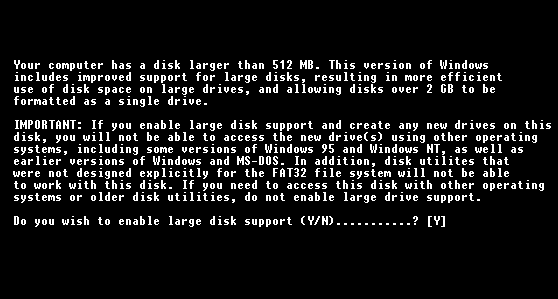
3. Select "Y" to enable FAT 32
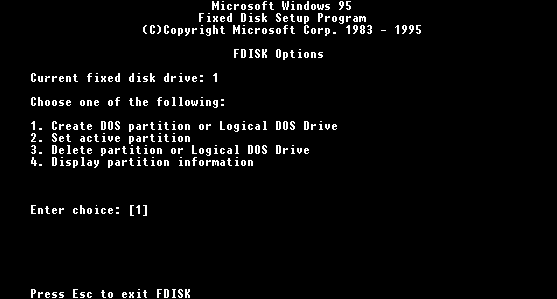
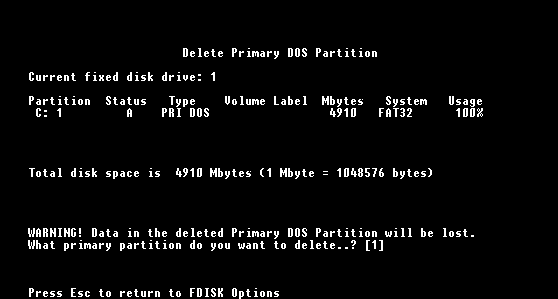
4. Select "3" to delete existing DOS partition.
5. Select "1" to delete the PRIMARY DOS PARTITION.
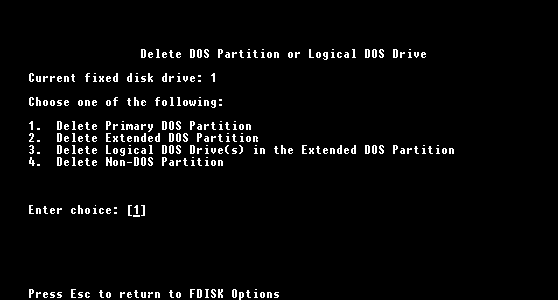
6. Press "1" to select the PRIMARY DOS PARTITION.
7. Press "ENTER" when prompted for a VOLUME LABEL.
8. Select "Y" to verify deletion of the partition.
9. The Primary DOS partition has been deleted. Press "ESC"
twice to return to the main menu of FDISK.
Create a new DOS Partition on a hard drive
1. Select "1" to CREATE DOS PARTITION.
2. Select "1" for PRIMARY DOS PARTITION.
3. Select "Y" for maximum available partition size.
4. The new DOS partition has now been created. Press "ESC"
twice to exit FDISK.
5. Leave the boot disk in the drive and reboot the system.
Formatting the Hard Drive
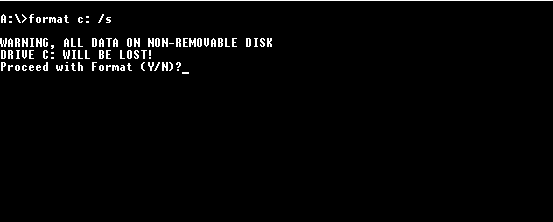
1. At the A: prompt type FORMAT C: /S and press "ENTER."
2. Press "Y" and "ENTER" when asked to proceed.
3. Press "ENTER" when prompted for a VOLUME LABEL.
|